
Why we might want to do this
Standard drag-and-drop email builders are sufficient for basic newsletters, but executing a global-first business strategy requires absolute control over your email's underlying code. When targeting enterprise clients globally, marketing emails must render flawlessly across highly restrictive legacy clients like Microsoft Outlook. This necessitates strict, table-based HTML and inline CSS, which WYSIWYG editors often mangle.
To deploy bulletproof custom HTML within Odoo's native Email Marketing application, you must bypass the standard blocks, select the correct foundational canvas, and interface directly with the source code.
Here is the standard operating procedure (SOP) for injecting custom HTML into Odoo email templates.
Prerequisites: Enabling the Technical Interface
By default, Odoo hides the advanced code editor to protect standard users from breaking layouts. To access the HTML injection tools, you must elevate your session privileges.
Navigate to your Odoo Settings.
Scroll to the very bottom of the general settings page.
Click Activate the developer mode. You will know this is successful when the developer tools "bug" icon appears in your top navigation bar.

Showing the top navigation bar with the bug icon
Workflow: Injecting the HTML Payload
Once Developer Mode is active, the Email Marketing application exposes new controls for technical users. The sequence of how you initiate the template is critical to avoiding CSS conflicts.
Select the "Start From Scratch" Template
Navigate to the Email Marketing application and click New to create a campaign. Odoo will present a gallery of pre-built themes. It is critical that you select the Start From Scratch template. Do not select a pre-designed layout. Pre-built templates contain hidden Odoo structural classes and internal CSS that will inevitably conflict with your custom HTML, causing severe rendering failures when the email hits strict corporate firewalls or legacy mail clients.
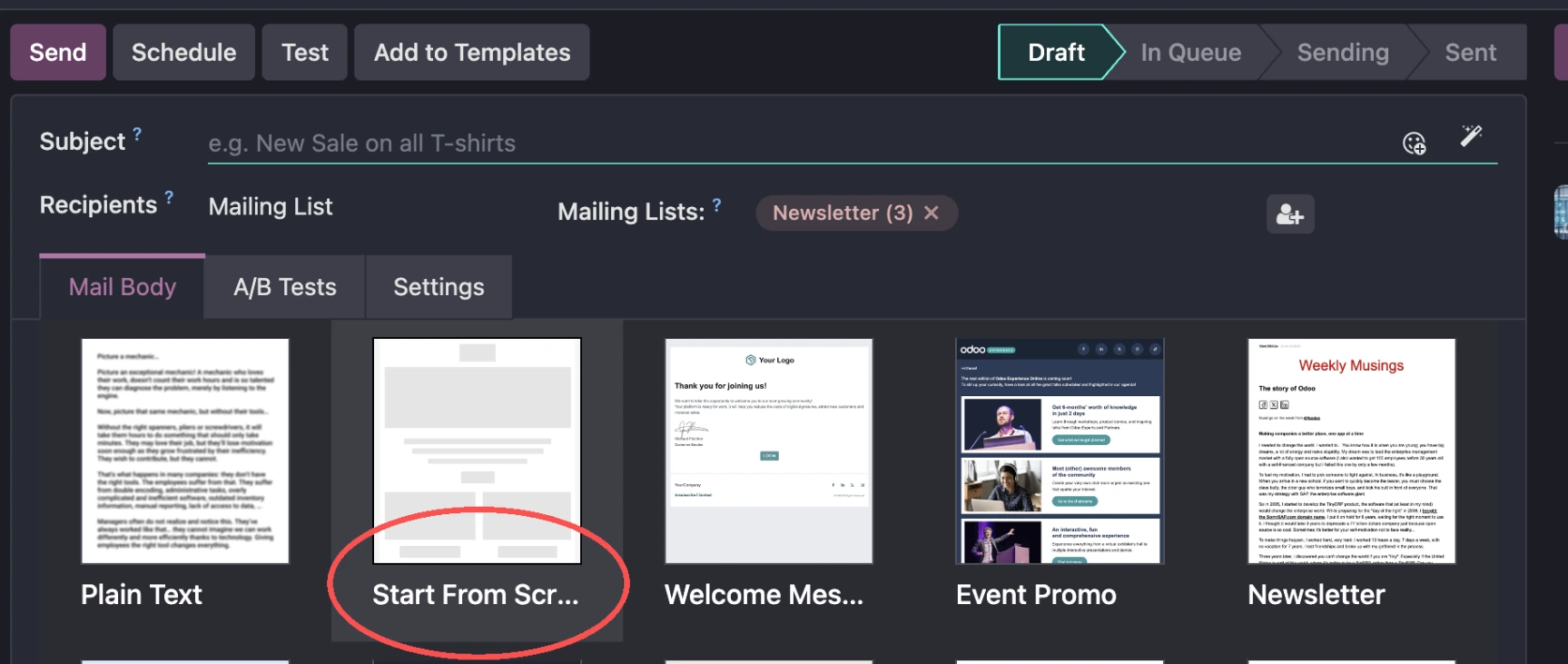
Showing the "Start From Scratch" template selection circled in red
Access the Code View Interface
Once your blank canvas loads, look at the top toolbar in the right-hand design panel. Because Developer Mode is active, you will now see the </> (Code View) button. Click this to strip away the visual builder block placeholders and access the DOM.
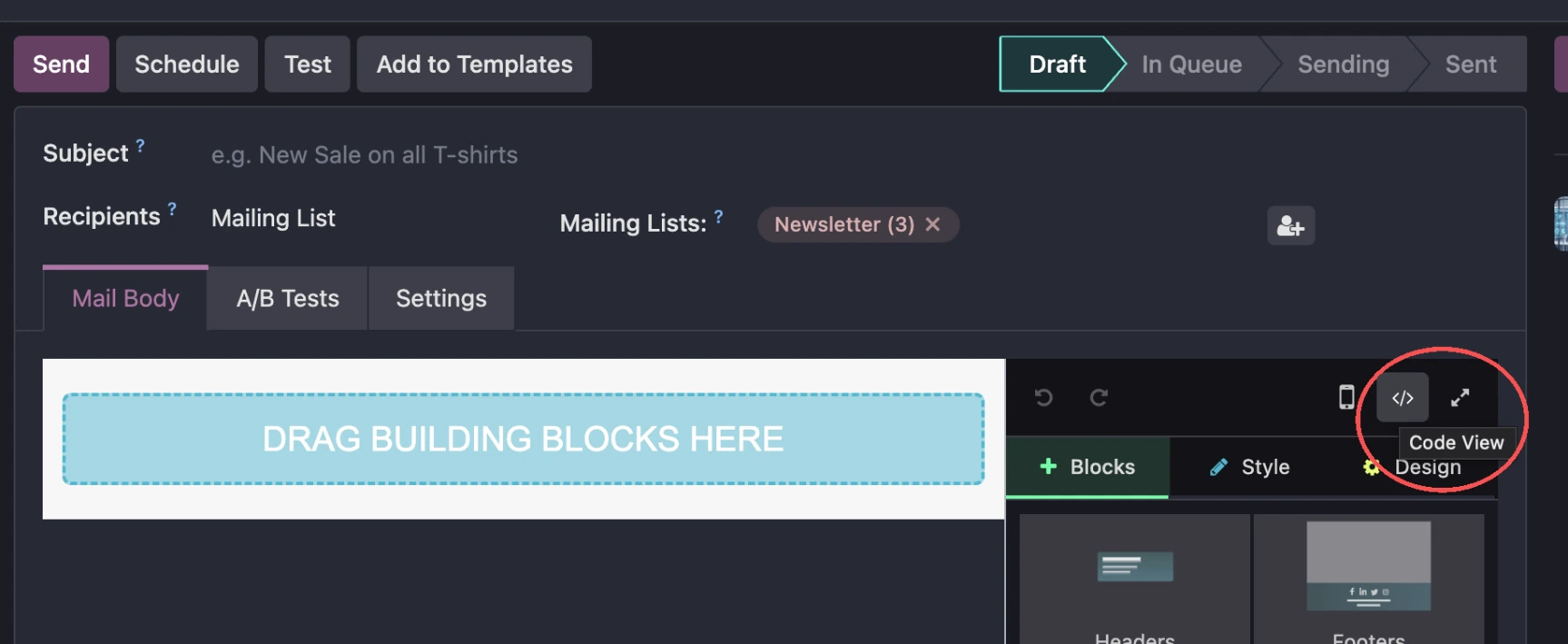
Showing the Code View button circled in red
Inject the Custom HTML
Clicking the Code View button transforms the editing canvas into a raw code editor. Paste your thoroughly tested, inline-styled HTML directly into this window. Ensure your code relies on nested <table> structures rather than modern CSS grid or flexbox, as Odoo's internal sanitizer and desktop email clients will strip unsupported modern CSS.
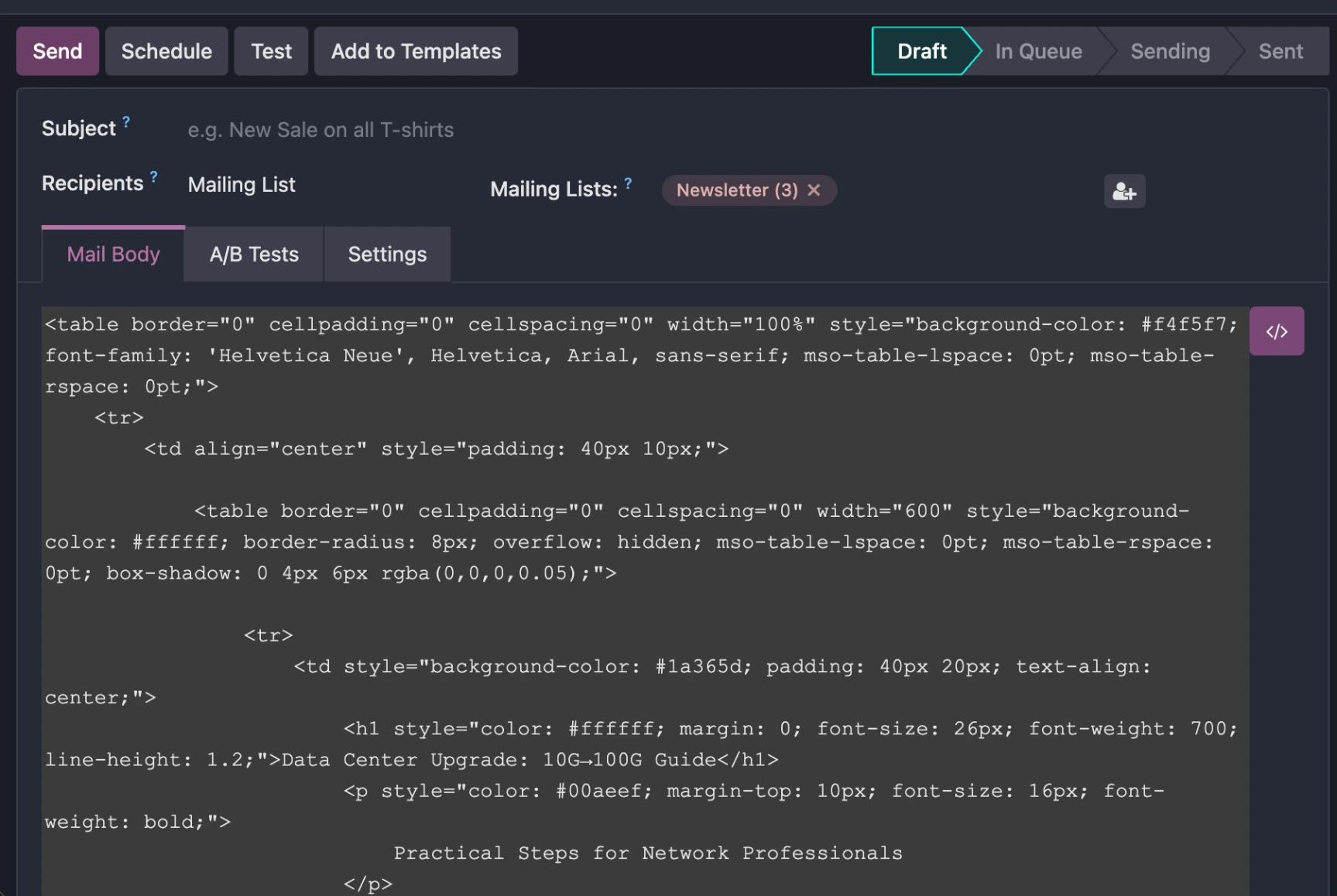
Showing the raw HTML code pasted into the dark mode editor
Verify the Rendered Output
To exit the code editor and confirm that Odoo's rendering engine has accepted your HTML without stripping essential tags, click the </> (Code View) button a second time. The interface will switch back to the visual preview mode, allowing you to see exactly how the structural elements, background colors, and typography will display to the end user.
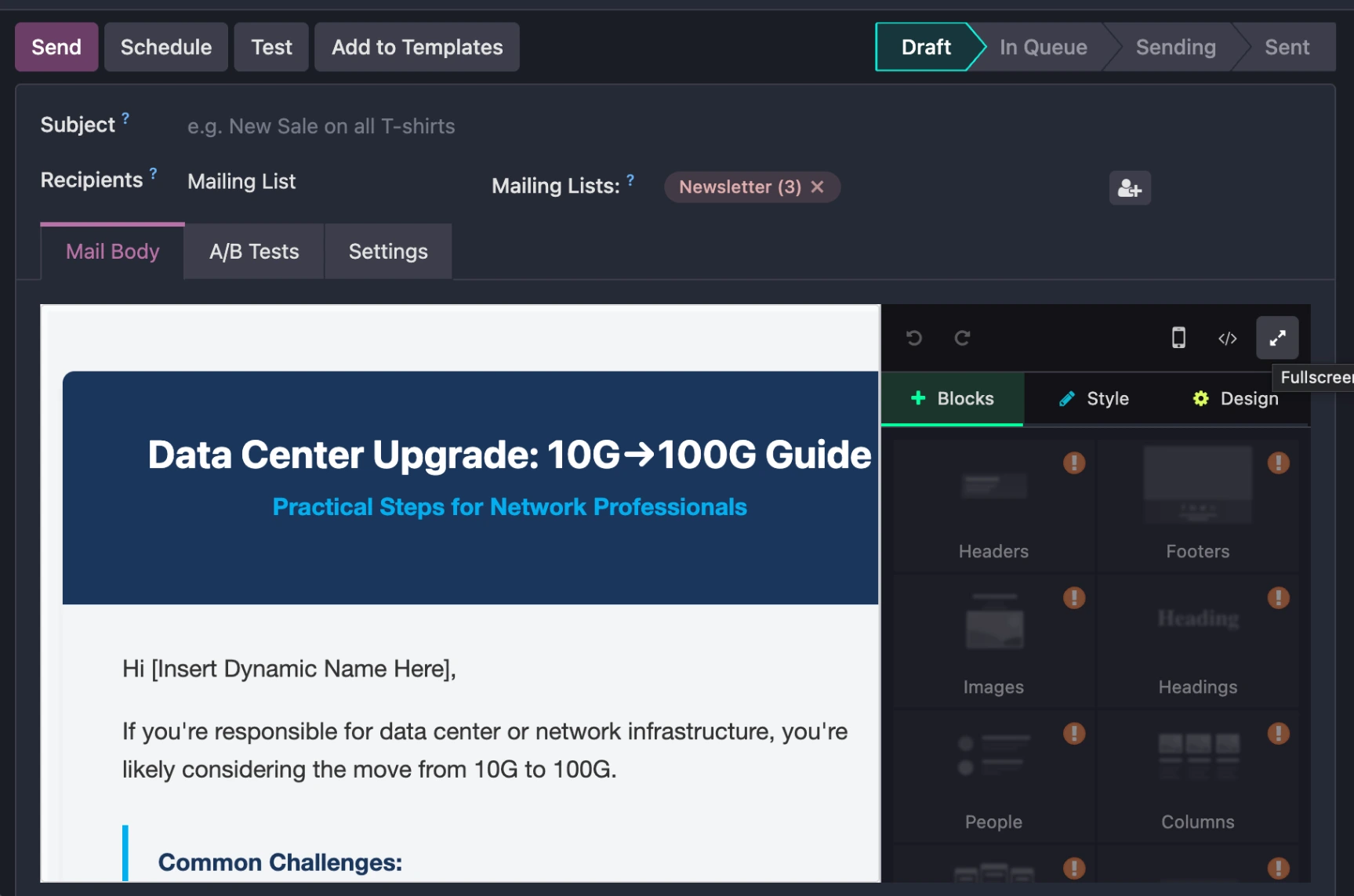
Showing the rendered visual output of the custom HTML
Best Practices for Odoo HTML Injection
Lock the Structure: Once your custom HTML is rendering correctly in the preview mode (Step 4), you can use the visual interface to edit text or update standard links. However, do not drag and drop new Odoo building blocks (like "Columns" or "Images") into your custom layout. Mixing Odoo's flexbox-based native blocks with your custom table-based HTML will cause layout fragmentation.
Dynamic Placeholders: You can still utilize Odoo's dynamic data insertion while using custom HTML. While in the visual preview mode, highlight the text you wish to make dynamic, type /, and select Dynamic Placeholder to inject backend database variables (e.g., recipient names or company data).
References
Cyr, Jason. "The Ultimate Guide to CSS in HTML Email." Litmus. Last modified January 15, 2025. https://www.litmus.com/blog/the-ultimate-guide-to-css-in-html-email/.
Odoo S.A. "Mass Mailing and Marketing Automation." Odoo Documentation. Accessed March 26, 2026. https://www.odoo.com/documentation/17.0/applications/marketing/email_marketing.html.
Robles, Rene. Odoo Development Essentials. Birmingham: Packt Publishing, 2023.